Standard Edition - Main Window Overview |
EasierSoft Bulk Barcode Generator and Label Printing Software |
Configuring the Barcode Layout on Your Labels |
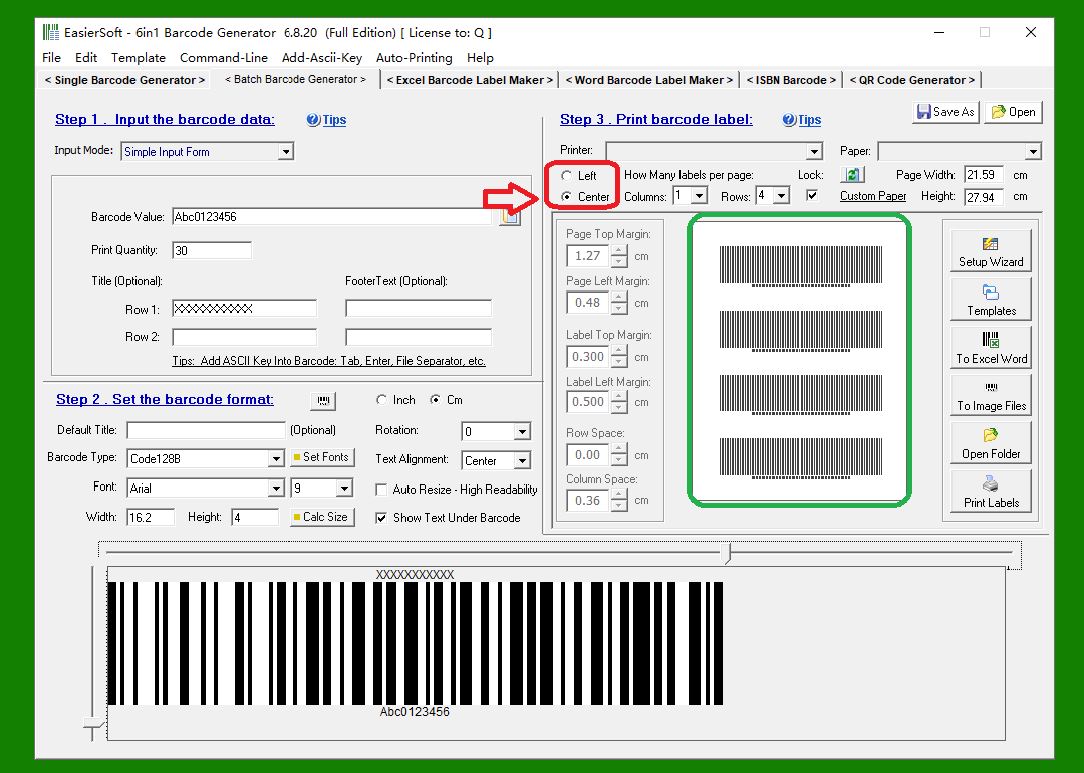
1. Center Alignment (Full-Page Auto Centering) |
When this option is selected, the software automatically centers all barcodes on the label sheet. You do not need to manually adjust margins, spacing, or other layout parameters. |
This mode is primarily intended for simple layouts, typically when a sheet contains only a single column or a small number of barcodes. It provides a quick, convenient way to print centered barcodes without detailed configuration. |
|
2. Left Alignment (Customizable Layout for Multi-Label Sheets) |
This option is suitable for most label printing scenarios, especially when working with standard multi-row and multi-column label sheets. |
When using Left Alignment, you can manually configure detailed layout parameters such as page margins, row spacing, and column spacing. The following items can be individually adjusted: |
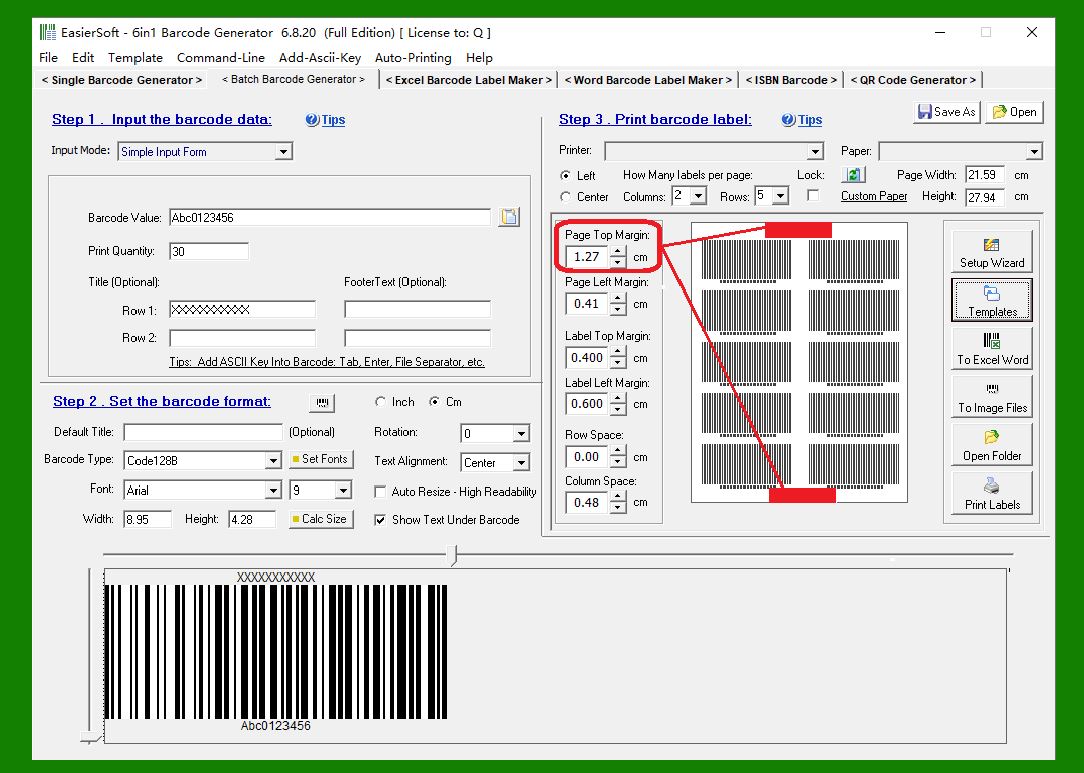
Top and Bottom Page Margins |
Defines the vertical empty space at the top and bottom edges of the printed page. |
|
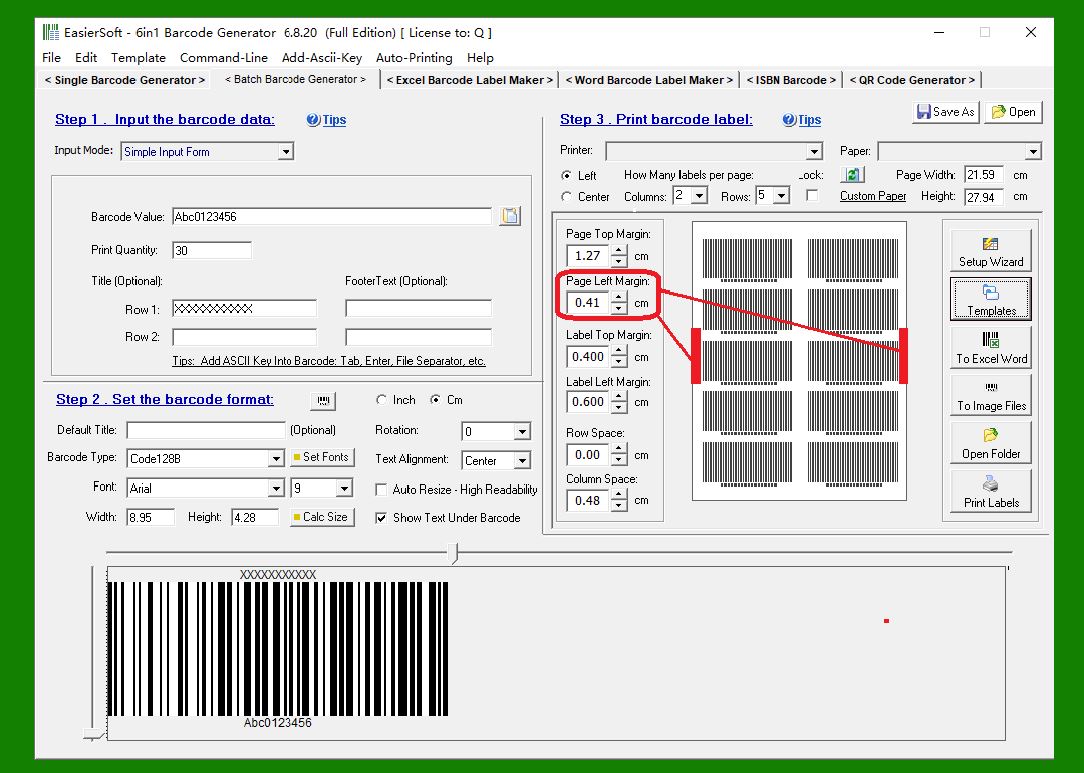
Left and Right Page Margins |
Defines the horizontal empty space at the left and right edges of the page. |
|
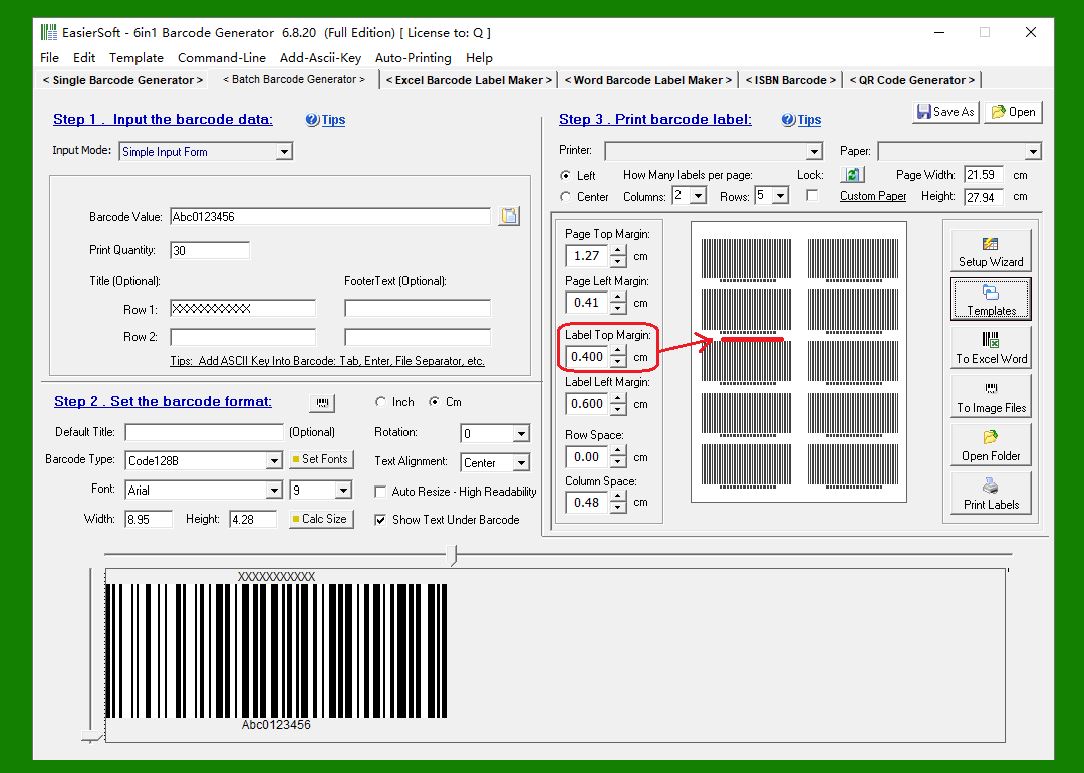
Individual Label Top Margin |
For sheets such as Avery 5160 (3 rows ¡Á 10 columns = 30 labels per sheet), you can specify the amount of space between the top edge of each label and its printed barcode. |
|
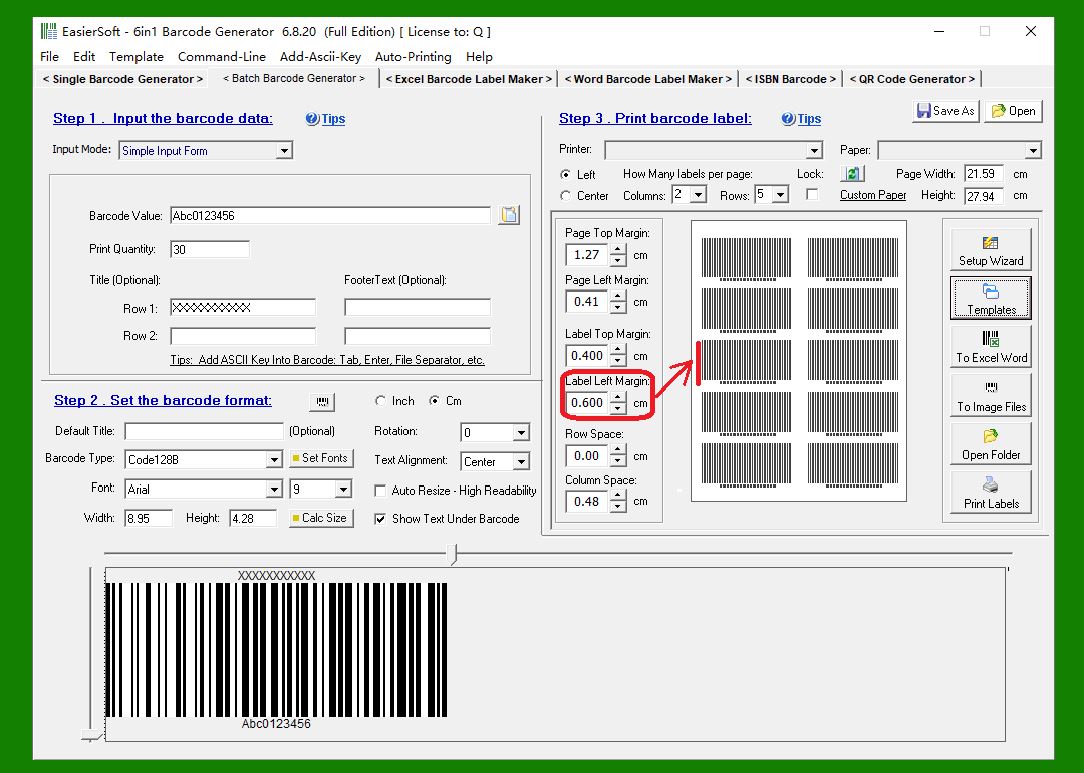
Individual Label Left Margin |
Similarly, for sheets with multiple columns, you can define the horizontal space between the left edge of each label and the barcode printed on it. |
|
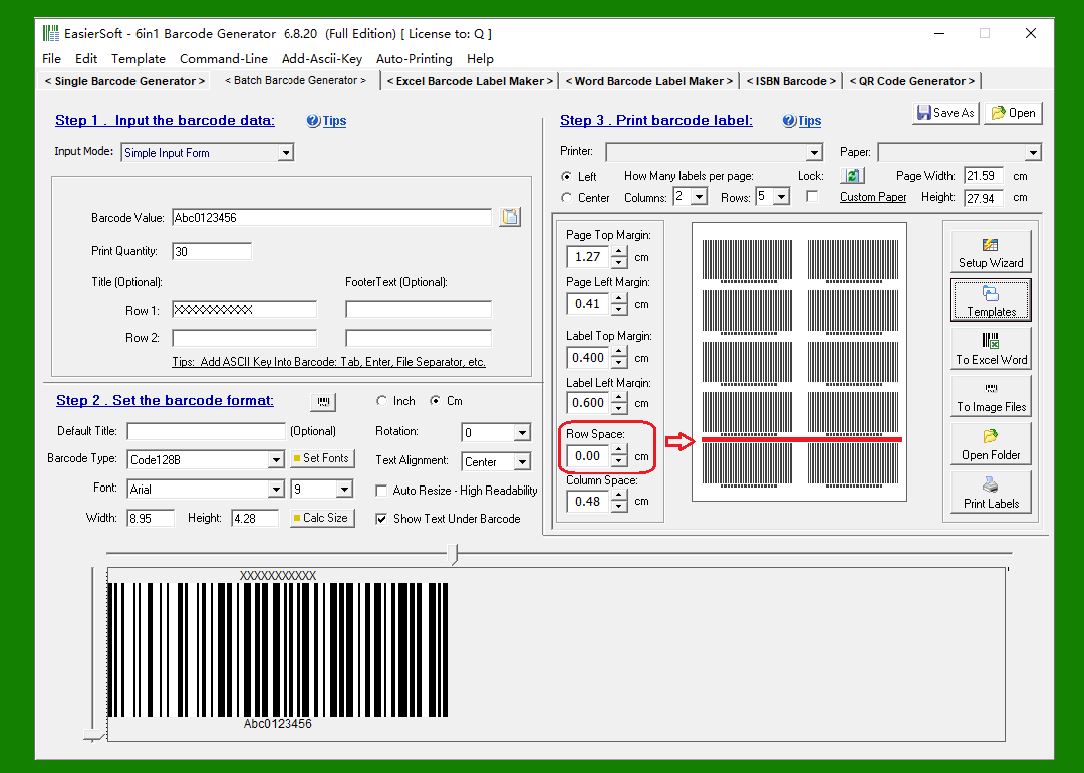
Row Spacing |
For label formats like Avery 5160, you can adjust the vertical spacing between two adjacent rows of labels. |
|
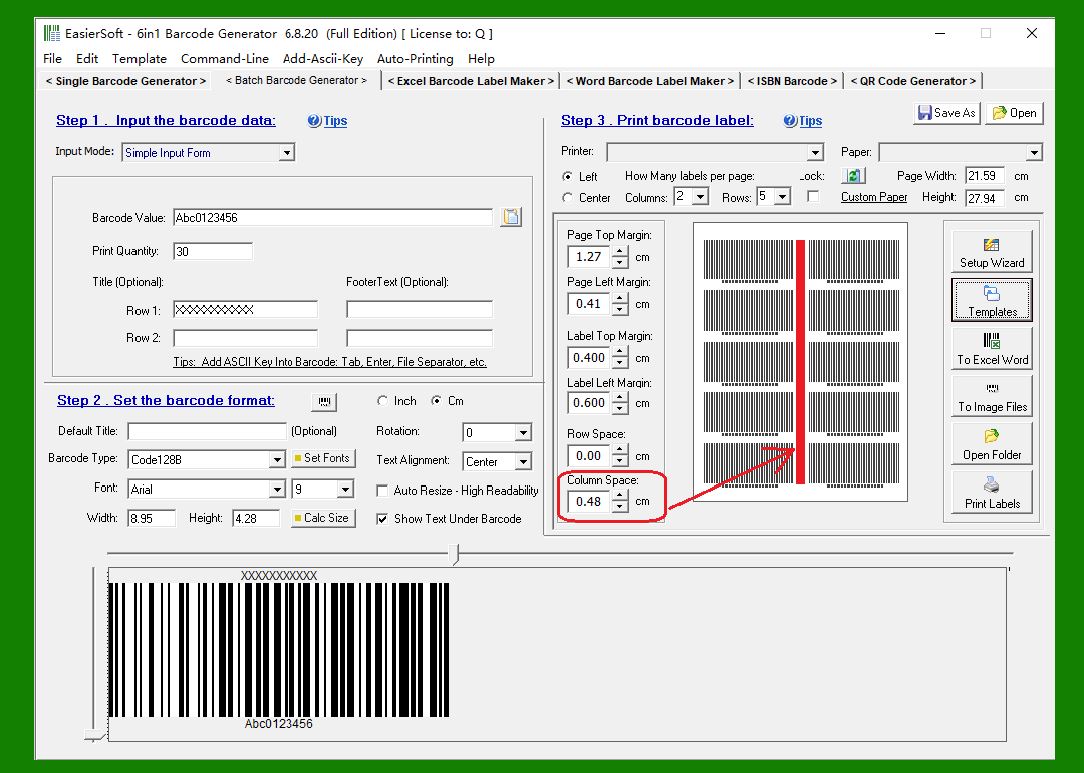
Column Spacing |
Allows you to set the horizontal spacing between columns of labels to ensure proper positioning across the sheet. |
|
 cs@easiersoft.com