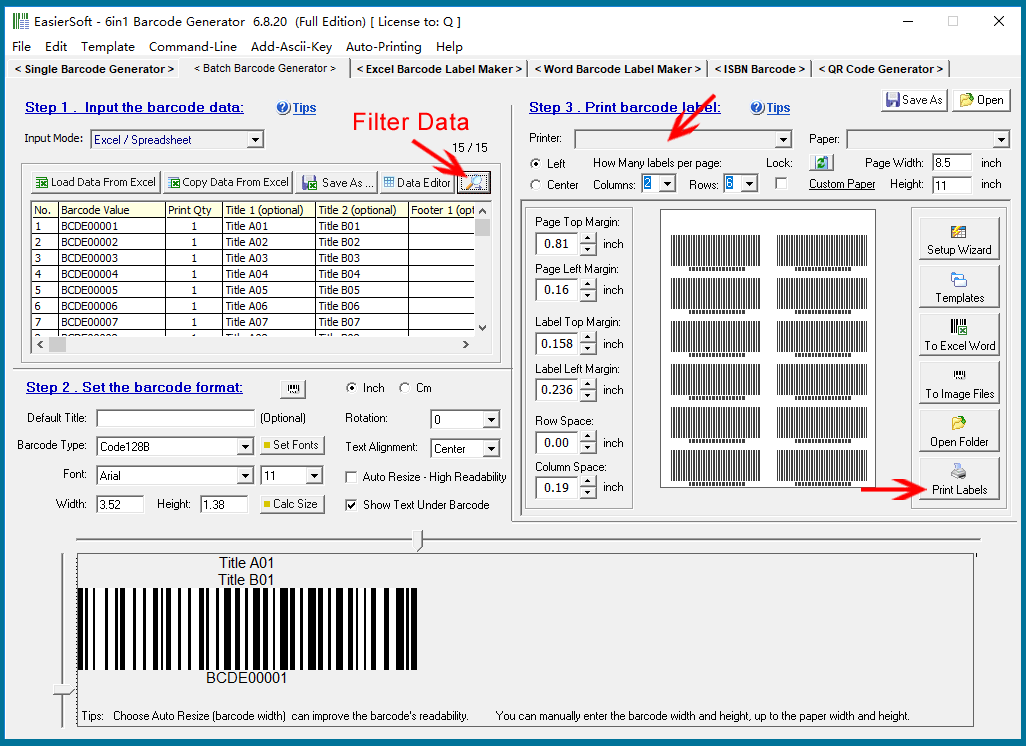
After configuring the barcode format and label page layout, click the 'Print Barcodes' button to open the print settings window. |
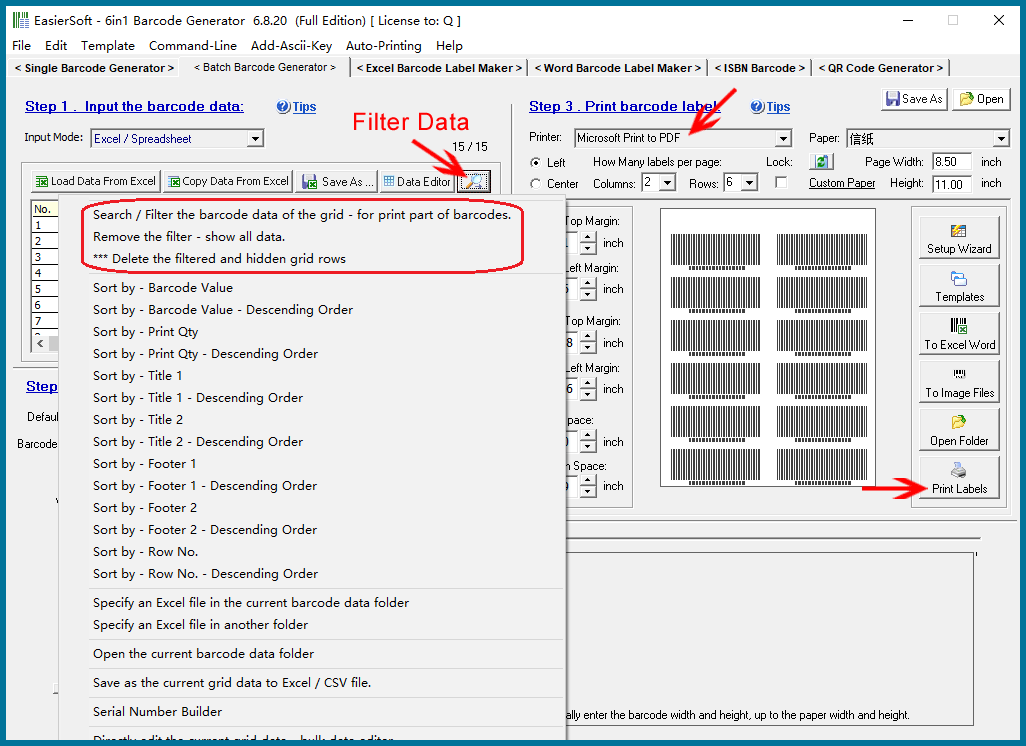
Before doing so, you can use the 'Data Filter' feature to select the specific data you need for printing barcode labels. This is useful as you may not need to print all the data. For example, if some barcode labels are damaged and unusable, you can reprint only those specific labels. |
|
You can choose a printer before clicking the 'Print Barcodes' button, or wait until the next step, where you will select the printer in the print settings window. By clicking the printer's dropdown list, you will see all printers installed on your system. |
Additionally, you can use the built-in Windows PDF virtual printer or a third-party PDF printer to generate barcode label files in PDF format. These files can be shared with others or sent to a printer located elsewhere. |
|
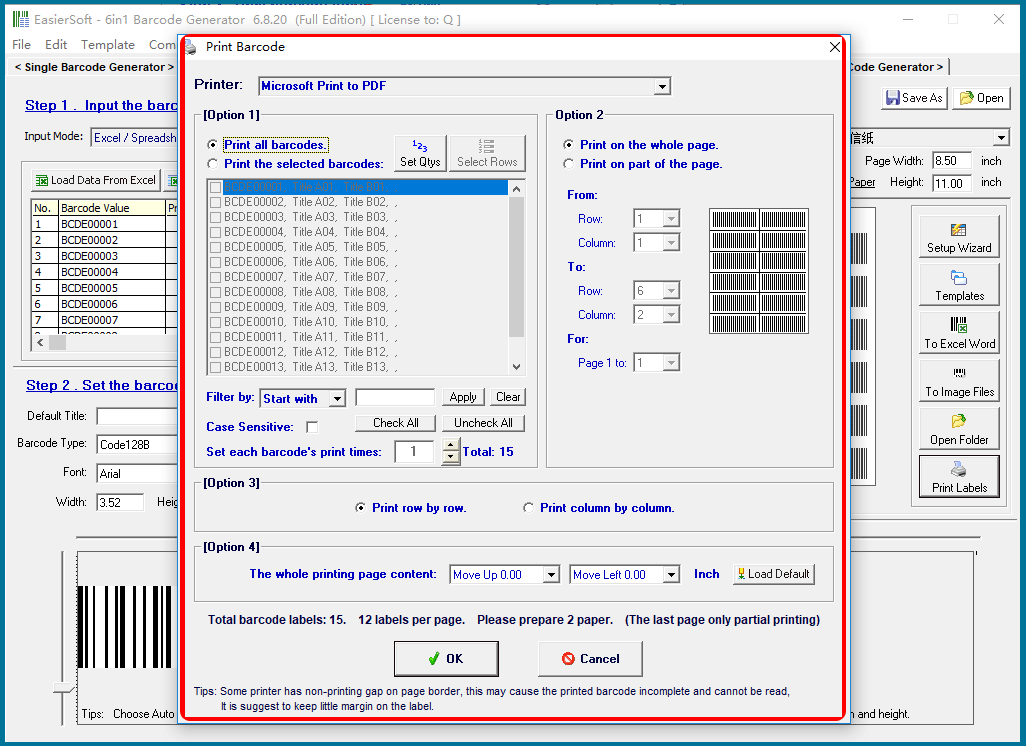
Clicking the 'Print Barcodes' button will open the following print settings window. |
|
Detailed print settings will be covered in the next article. |
 cs@easiersoft.com