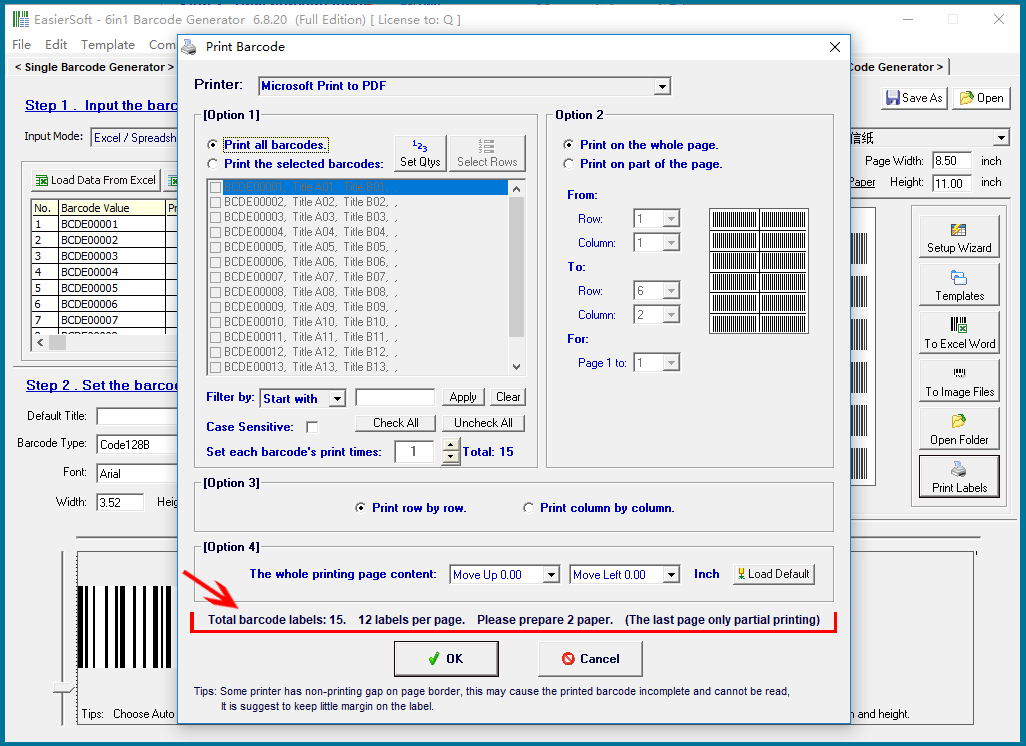
The print settings window is divided into four sections: |
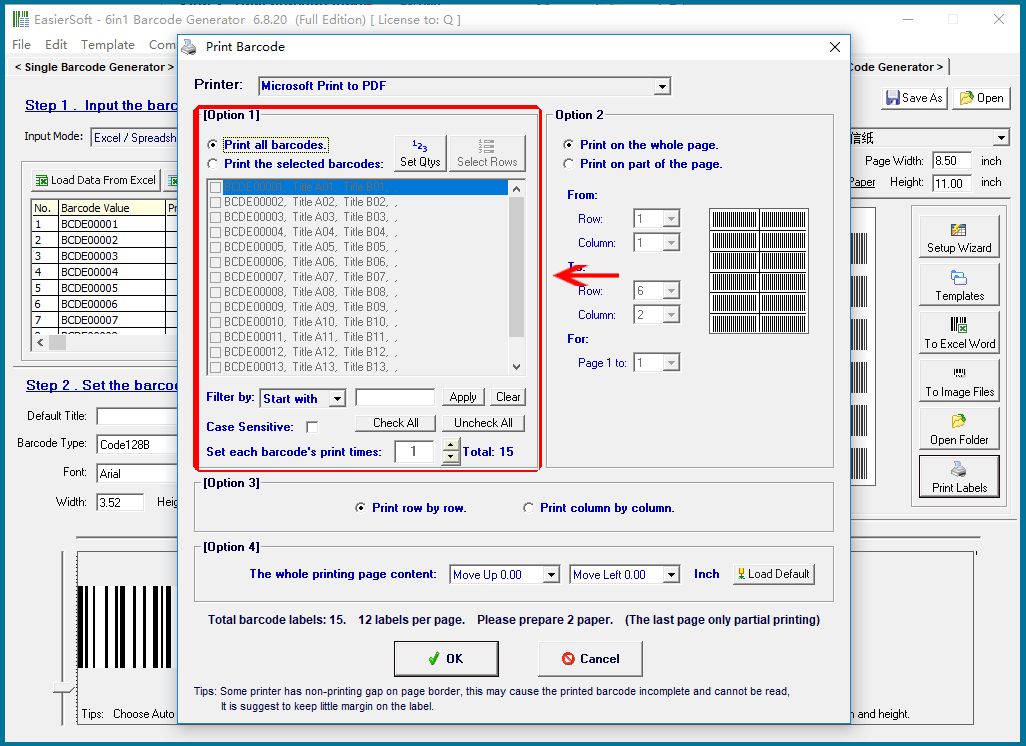
Data Selection: This section allows you to filter the data to be printed. You can choose to print all or a subset of the data, and also set the number of repetitions for each barcode label. |
|
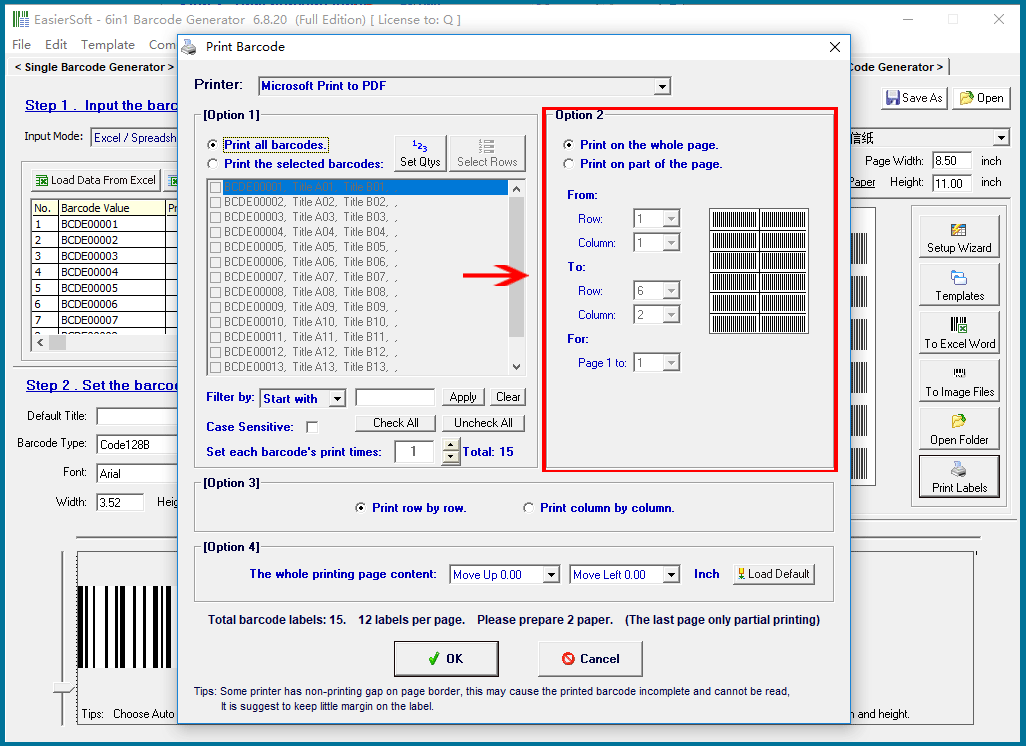
Label Positioning on the Page: When printing multiple labels on a single page, you can specify the area of the page where printing will occur. This feature allows you to define the starting and ending rows and columns for printing. It is particularly useful if only part of the page was used during the previous print, enabling you to print on the remaining labels without wasting paper. |
|
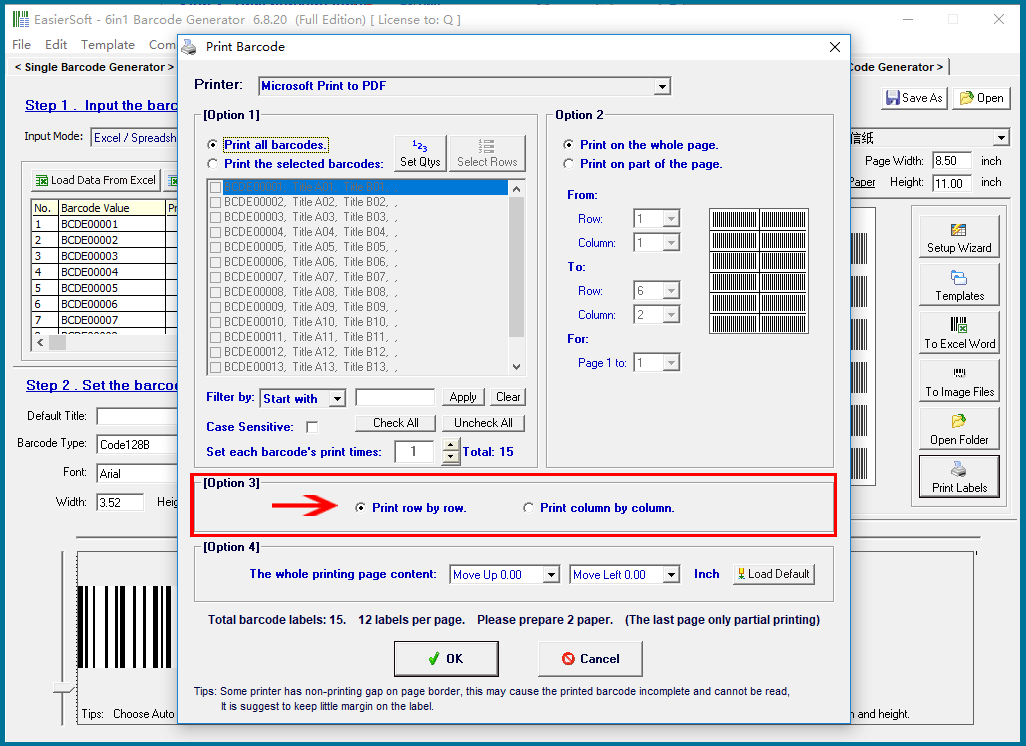
Label Matrix Layout: This section lets you configure how the barcode data is arranged within the label matrix. You can choose either a horizontal (row-wise) or vertical (column-wise) arrangement. |
|
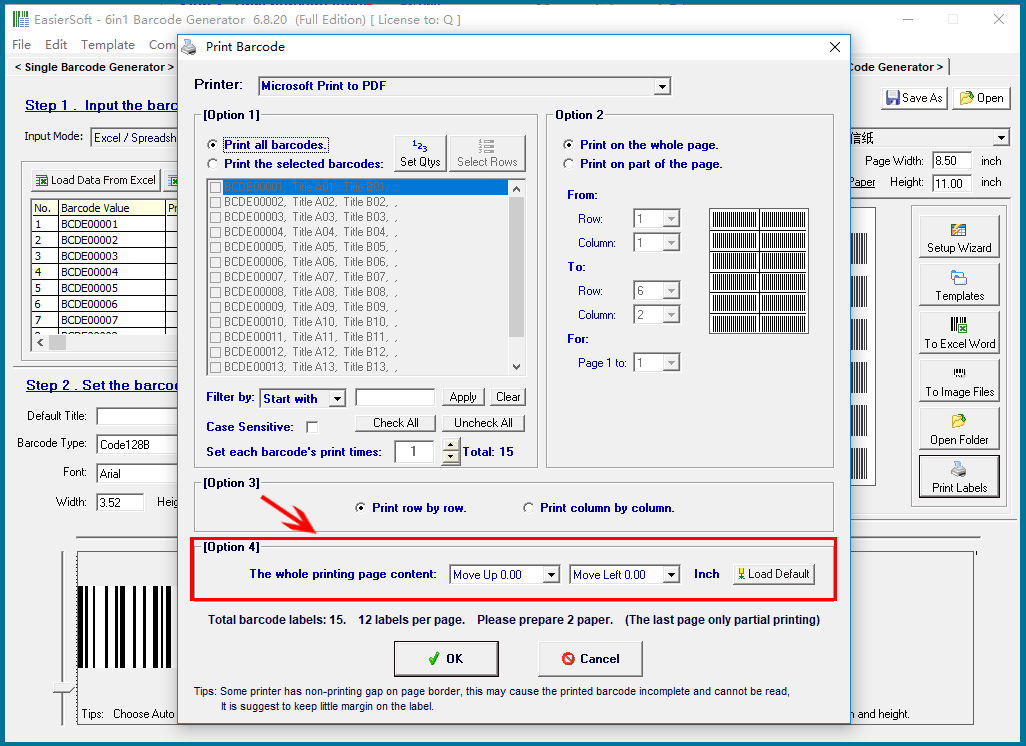
Page Adjustment: This option enables you to shift the print content overall, either up, down, left, or right. It is designed to correct any potential misalignment that may occur due to printer deviations. |
|
The notification indicates the number of sheets you need to prepare. This is calculated based on the total number of labels to be printed and the number of labels per sheet. |
|
In the next article, we will provide a detailed explanation of these four sections. |
 cs@easiersoft.com