Standard Edition - Main Window Details |
EasierSoft Bulk Barcode Generator and Label Printing Software |
Loading Predefined Label Templates |
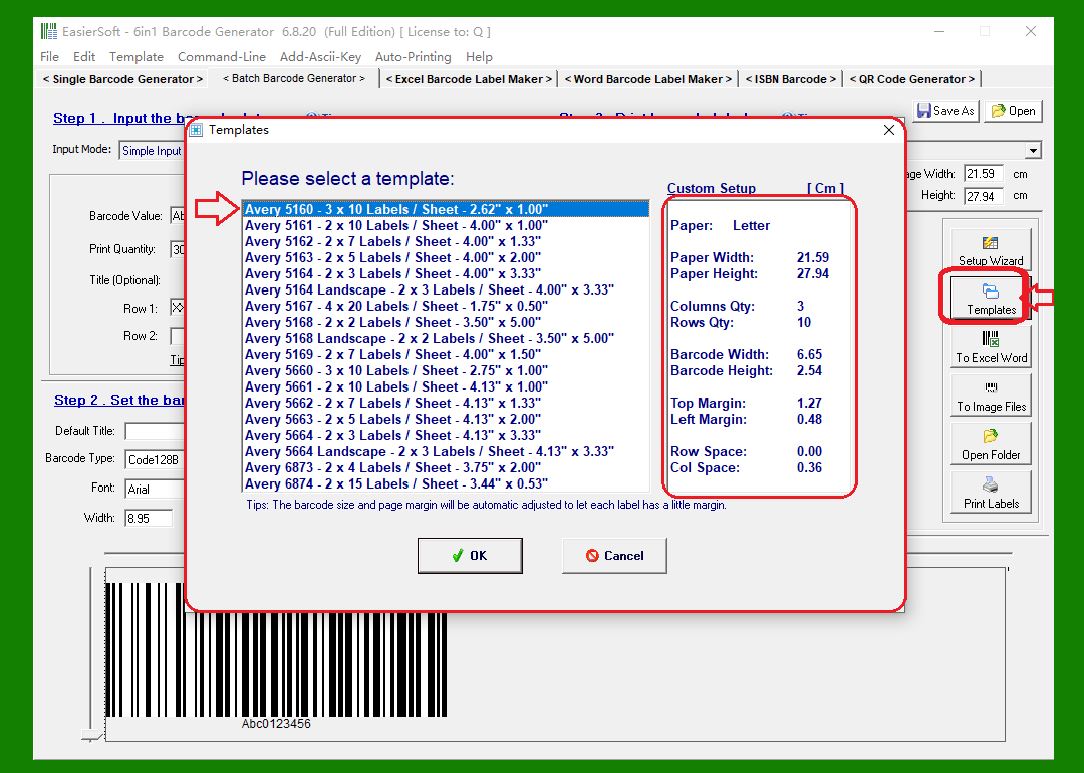
1. This software includes a collection of commonly used, predefined label templates. |
As shown in the illustration, you can click the 'Template' button to open the template selection window. When you select a template from the list on the left, the text box on the right will immediately display all detailed parameters associated with that template'such as label size, margins, number of rows and columns, and other layout settings. After reviewing the parameters, simply click 'OK', and the software will automatically load all of that template¡¯s settings into the main window. |
|
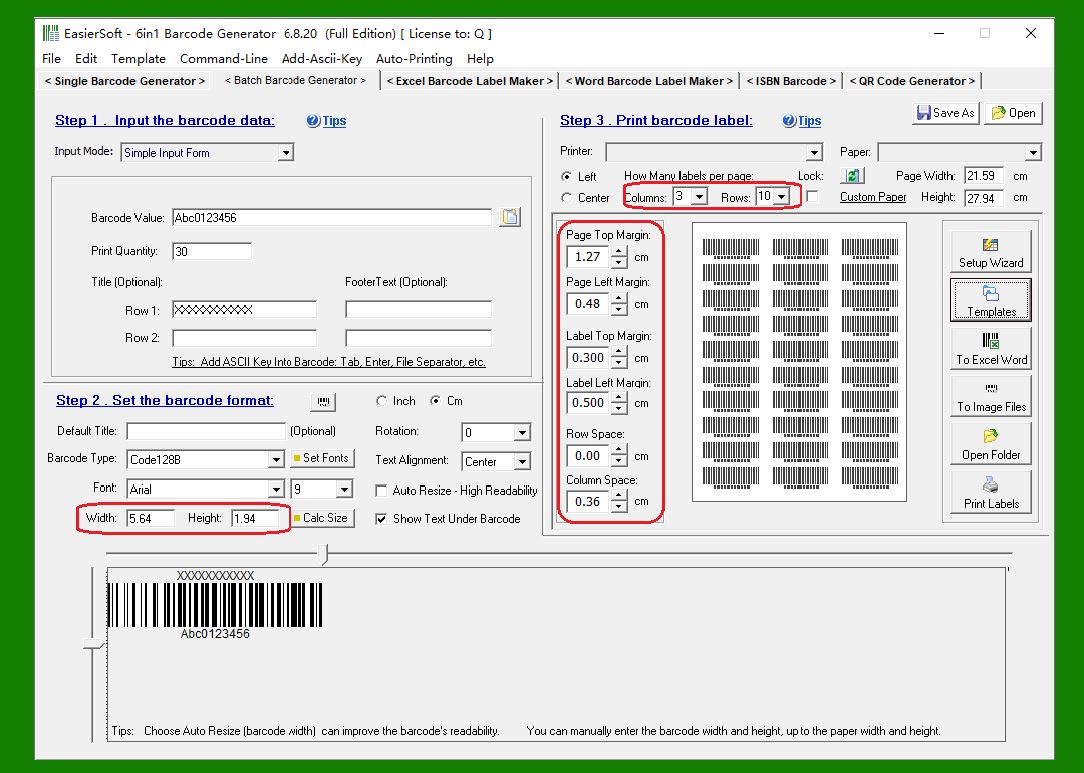
2. The image below demonstrates the result of loading the 5160 label template. |
After selecting the 5160 template in the previous example, the main window is updated with all corresponding layout parameters, allowing you to begin designing and printing without manually configuring each option. |
|
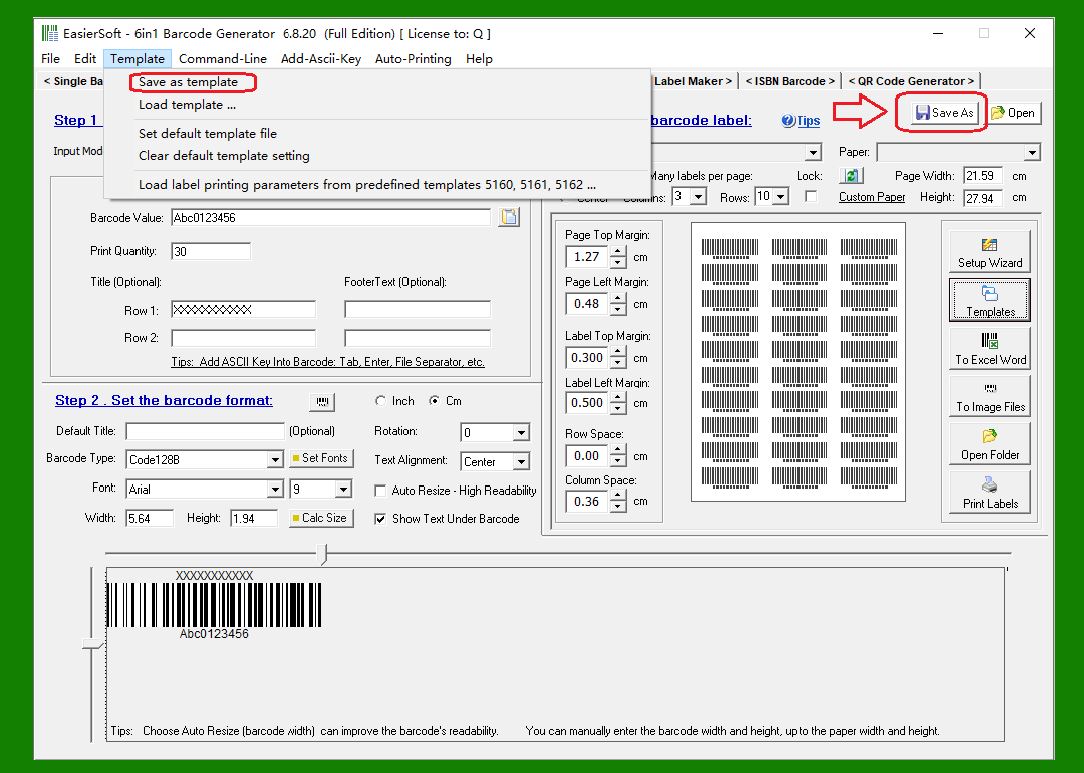
3. You can also create and save your own custom label templates. |
Once you have configured a label layout exactly the way you want such as customized label width, height, spacing, margin settings, and barcode positions'you can save those settings as a reusable template. To do this, click the 'Save As' button shown in the illustration, or choose 'Template - Save as Template from the menu. The program will save the current configuration to a template file. |
The next time you need this custom template, simply load the saved file instead of reconfiguring all parameters manually. This greatly improves efficiency for recurring label-printing tasks. |
|
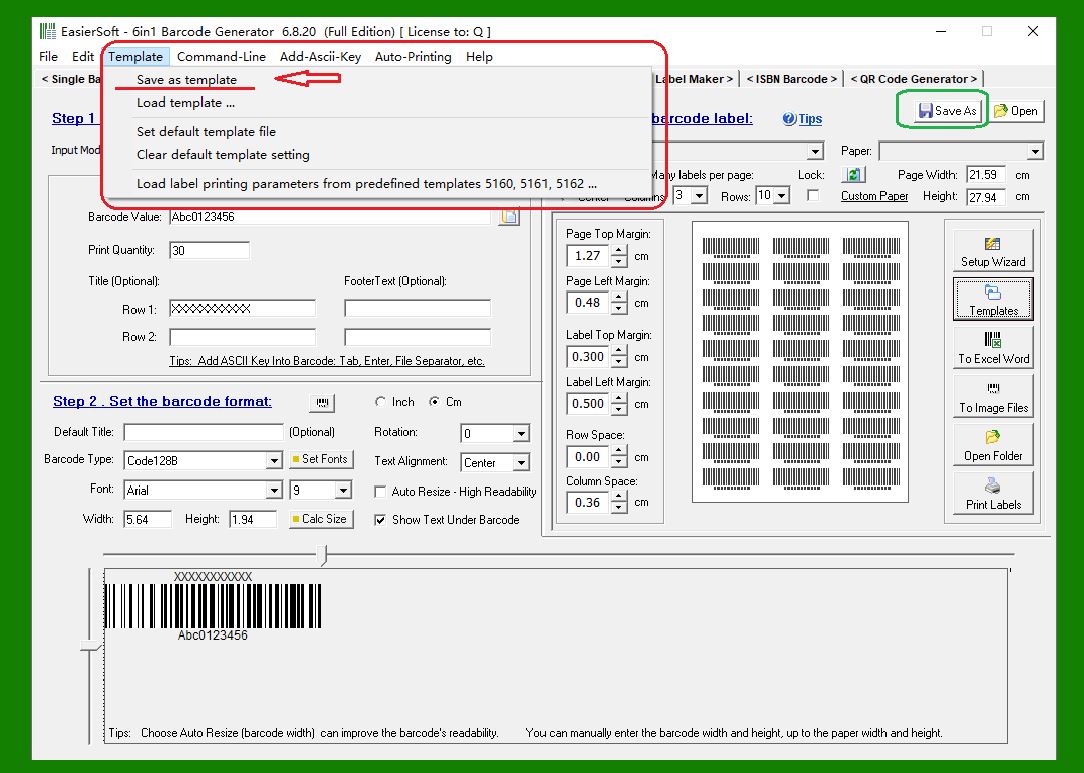
4. The 'Template - Save as Template' menu option |
This menu command provides the same function as the 'Save As' button. It saves the current label layout and parameter configuration into a reusable template file. |
|
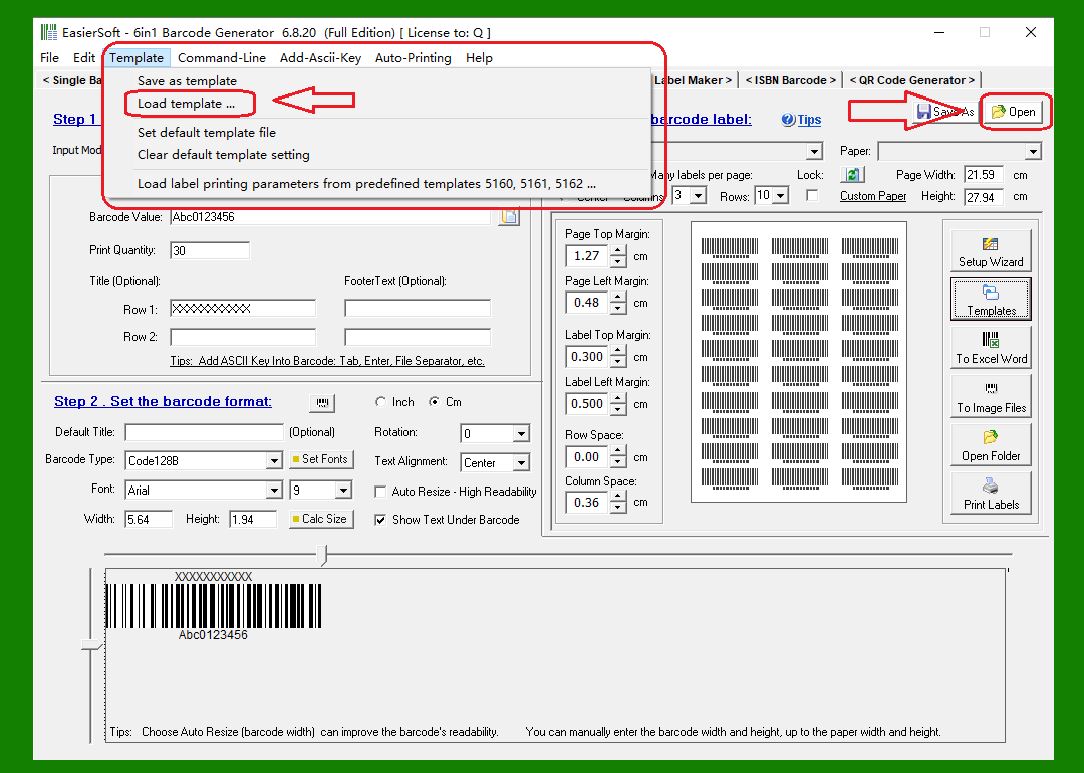
5. The 'Template - Load Template' menu option |
Selecting this command allows you to load any previously saved template file. The button to the right of this option performs the same action, offering a quick way to restore a complete set of label settings with a single click. |
|
 cs@easiersoft.com